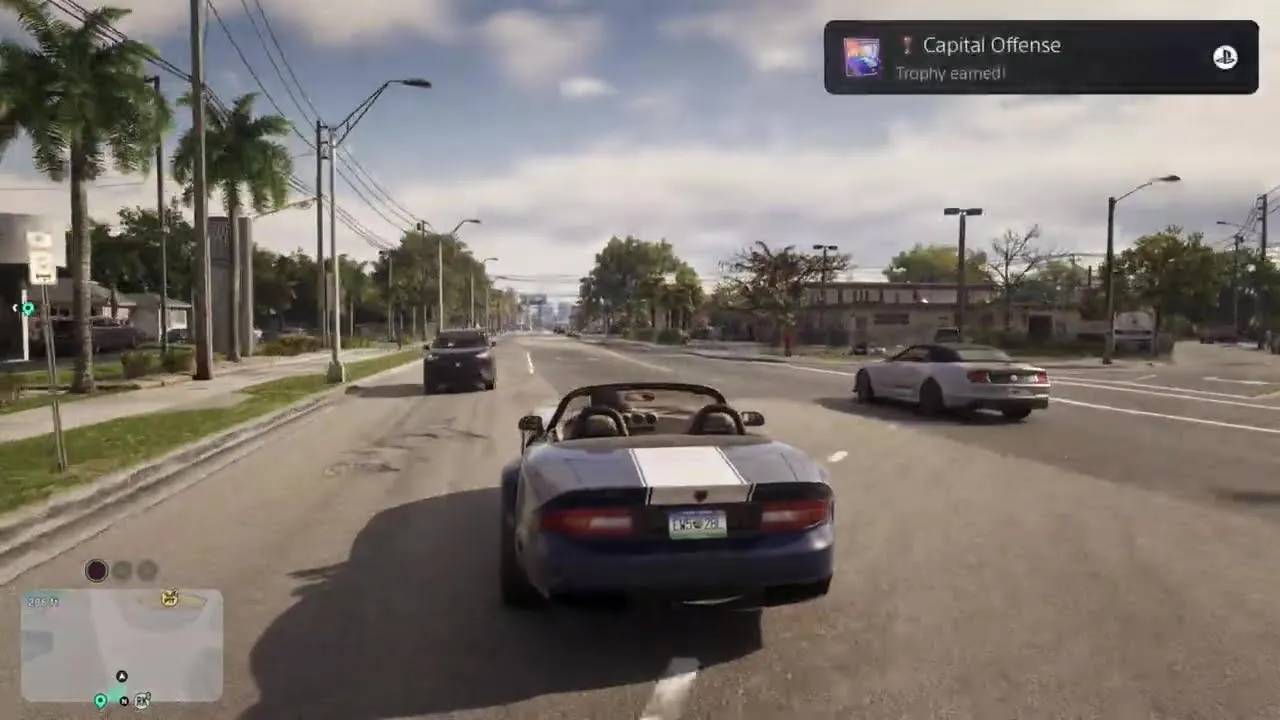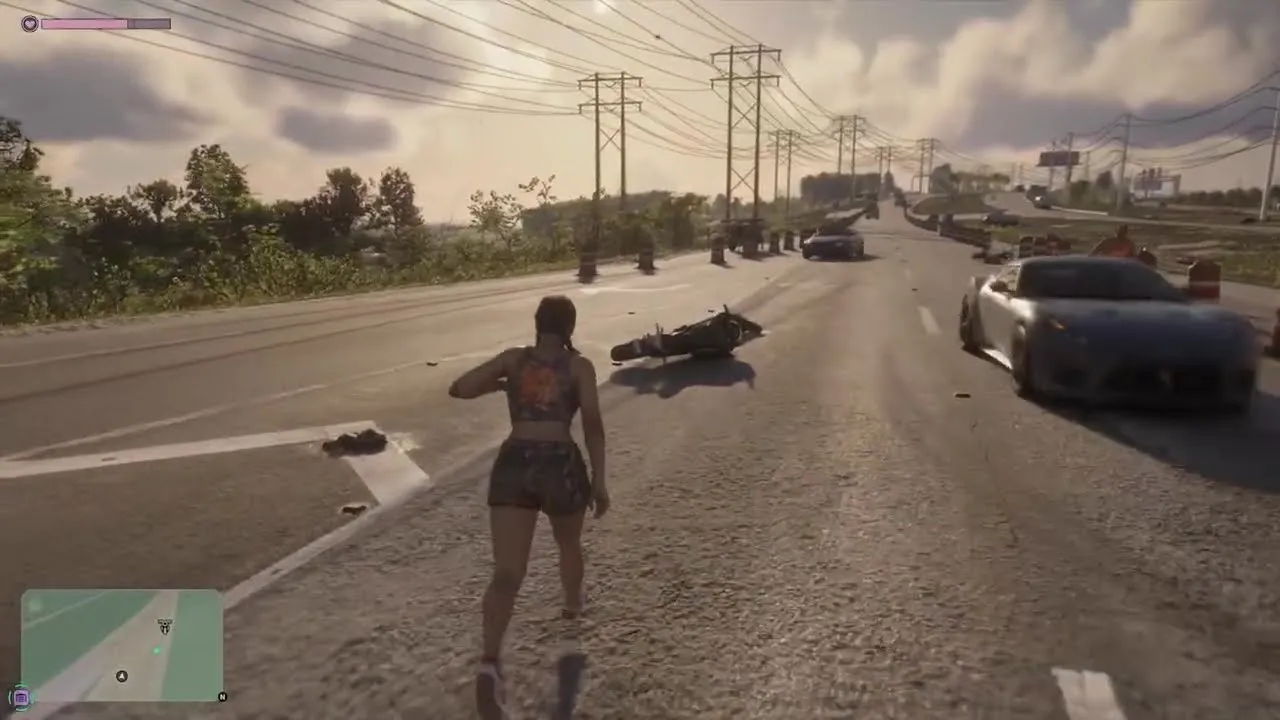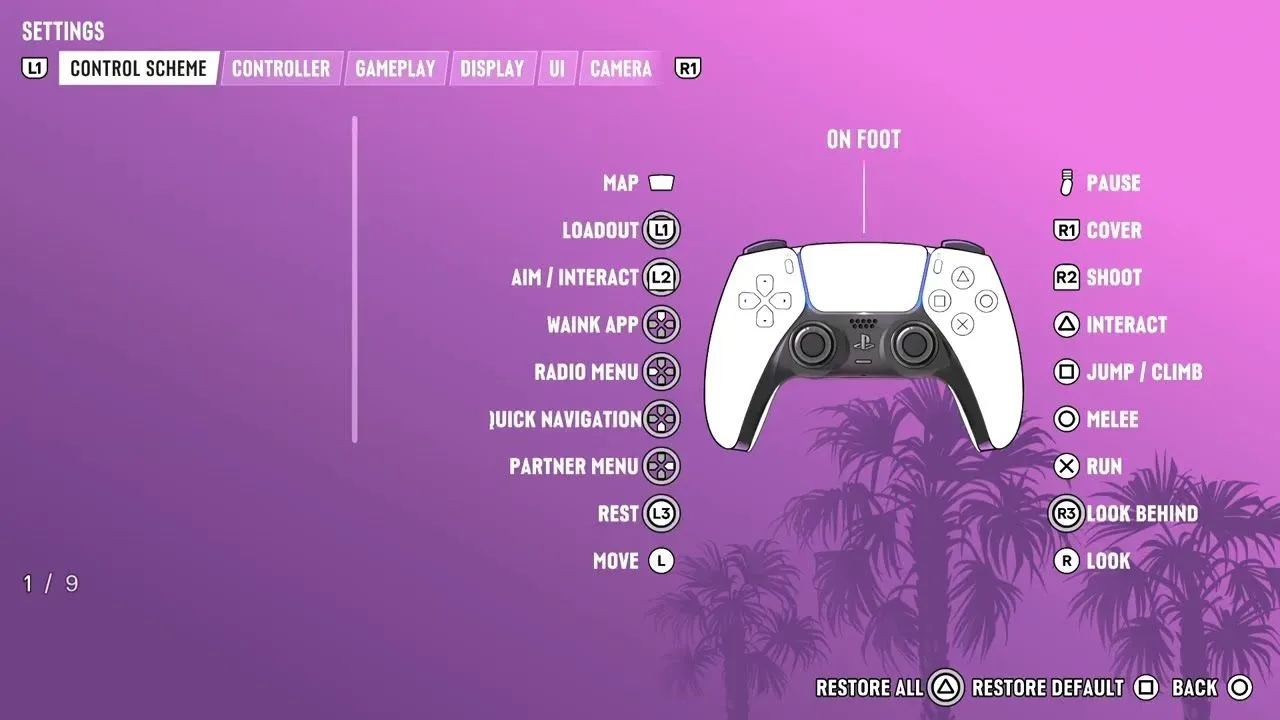
GTA 6's default settings are fine, but a few tweaks make aiming smoother, driving less frustrating and the picture a lot better on your TV. Here are the best GTA 6 settings for PS5 and Xbox Series X|S: controls, aim assist, sensitivity, HDR and the TV side of things.
Quick facts
- Frame rate: GTA 6 runs at 30 fps on console, with no 60 fps performance mode at launch
- Targeting: Partial aim assist, strength around 3–4
- Sensitivity: look around 7, aim a bit lower at 5–6
- Response curve: Standard (Linear if you want maximum consistency)
- HDR: on, then calibrate in the console's HDR settings
- TV: Game Mode on, motion smoothing off
Best aim settings
Most players settle on these as a starting point:
- Targeting mode: Partial. You get help snapping onto targets without the game playing for you.
- Aim assist strength: 3–4. Lower it if the snap feels too sticky.
- Shooting assist and drive-by assist: leave them on. Shootouts from the driver's seat are much easier.
- Aim sensitivity: 5–6, a little lower than the camera, for finer corrections.
- Look sensitivity: around 7, so camera turns stay quick.
- Response curve: Standard. Linear is the most predictable option if you're coming from shooters.
If you keep overshooting targets, drop aim sensitivity by one step and try again.
Best HDR settings
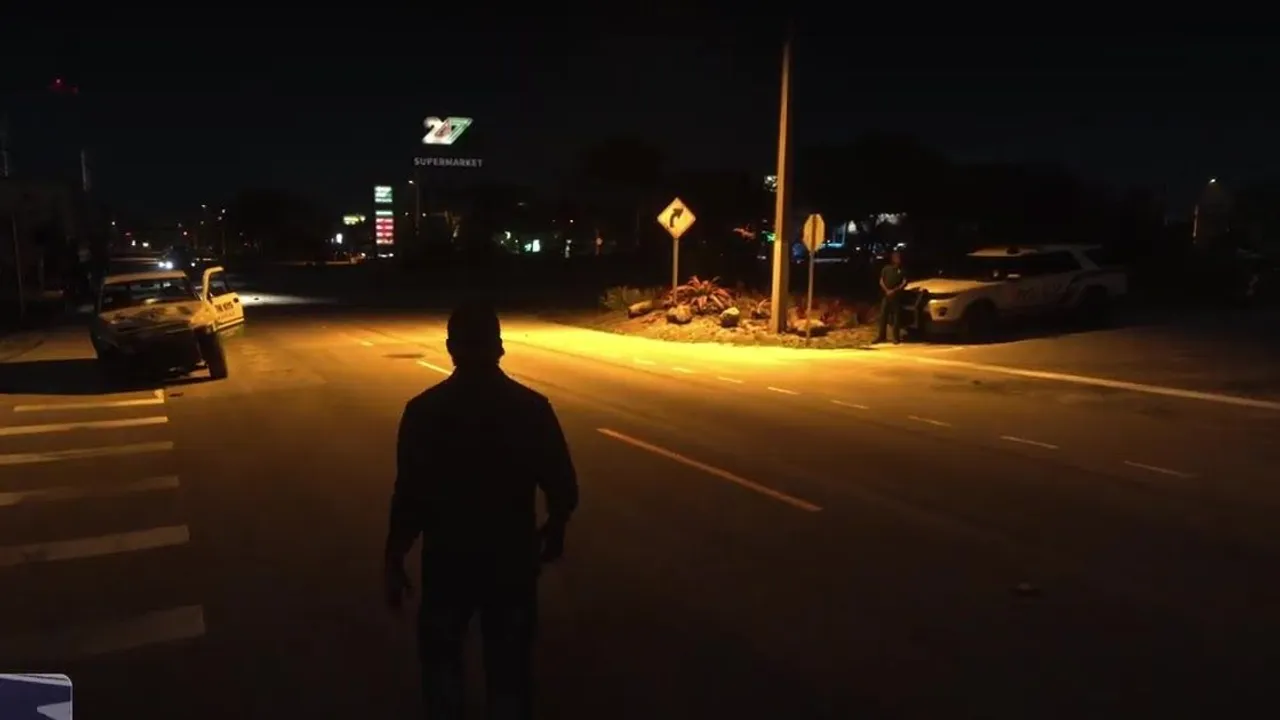
- Set HDR to on (or "on when supported") in the game.
- Run your console's HDR calibration. On PS5 it's under Settings → Screen and Video → Video Output → Adjust HDR.
- Use an HDMI 2.1 port on your TV if you have one.
- On the TV, turn off any "smart", dynamic, adaptive or AI picture processing.
Best TV & picture settings
- Game Mode on for the lowest input lag.
- Motion smoothing off. It adds lag and artifacts.
- Motion blur: personal taste. Turning it down makes the 30 fps image look sharper when you pan the camera.
Frame rate: is there a 60 fps mode?
Not at launch. GTA 6 is locked to 30 fps on PS5 and Xbox Series X|S, so the best settings are about control and image clarity rather than chasing frames. Latest GTA 6 update
Screenshots in this guide: Arslan Plays / YouTube