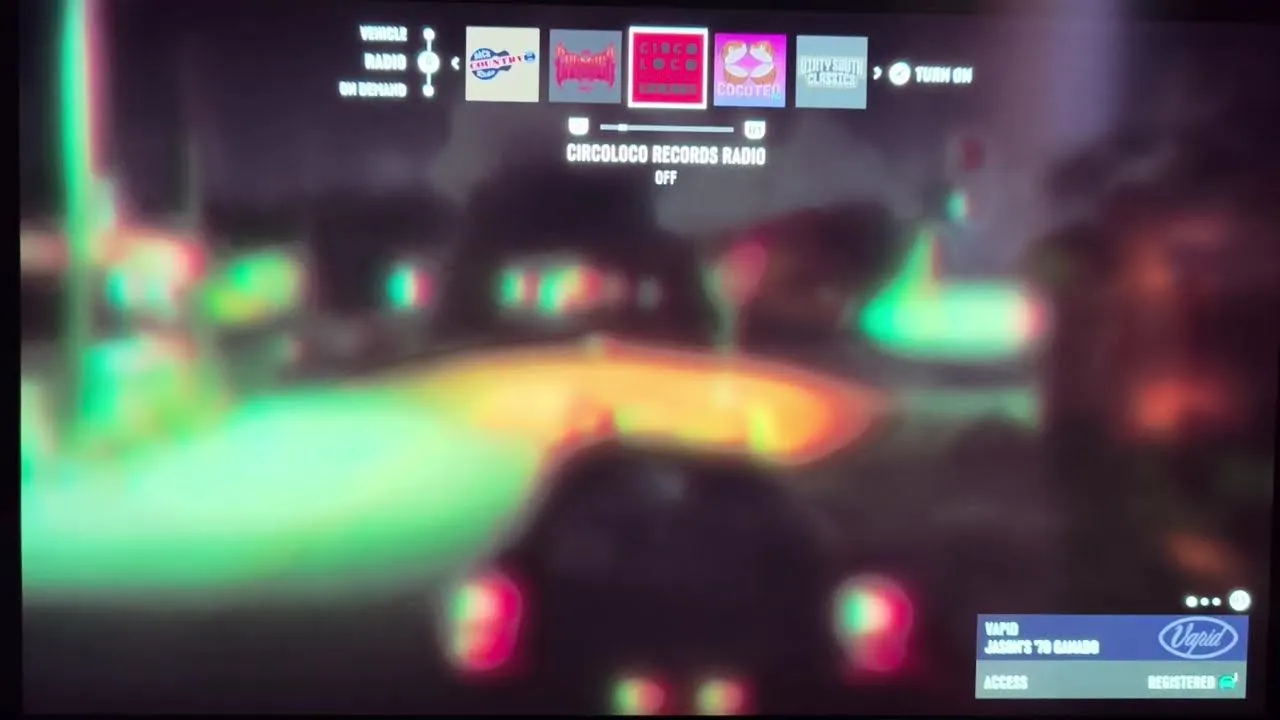
GTA 6 hides a lot of useful actions behind button combos. Here are the GTA 6 controls people search for most: how to change the radio station, flip a car, switch to first person, turn on headlights and use nitrous, on PS5 and Xbox.
Quick facts
- Change radio: hold D-pad Left, scroll with L1/R1 (LB/RB), release
- Radio on/off: double-tap D-pad Left
- Headlights: Circle (PS5) / B (Xbox)
- Nitrous: L3 (PS5) / left stick click (Xbox). It shares the button with the horn
- Flip a car: hold Square (PS5) / X (Xbox) next to it to shove it back on its wheels
- First person: hold L2 (LT) and press R3
How to change the radio station
- Hold D-pad Left to open the radio wheel.
- Scroll with L1 / R1 (LB / RB) to pick a station.
- Release the D-pad.
Double-tap D-pad Left to turn the radio off or on. Need a station tip? Best radio stations

How to flip a car
Rolled your car? Get out, stand next to it and hold Square (PS5) / X (Xbox) to shove it. Push hard enough and Jason or Lucia flips it back onto its wheels. This also works for nudging a stuck car. Thrillbilly Mud Club
How to go first person
Hold L2 / LT and press R3 to switch to first-person view. Driving in first person is great for cockpit views and tight streets.
How to turn on headlights
Press Circle (PS5) / B (Xbox) to cycle headlights on, off and brights.
How to use nitrous
Cars with nitrous use L3 (PS5) / left stick click (Xbox), the same button as the horn. In the Gameplay settings you can choose whether nitrous is held or toggled. The best nitrous cars are the standout Emerus versions. Emerus locations
More useful controls
| Action | PS5 | Xbox |
|---|---|---|
| Radio wheel | Hold D-pad Left + L1/R1 | Hold D-pad Left + LB/RB |
| Radio on/off | Double-tap D-pad Left | Double-tap D-pad Left |
| Headlights | Circle | B |
| Nitrous / horn | L3 | Left stick |
| Shove / flip car | Hold Square | Hold X |
| First person | Hold L2 + R3 | Hold LT + R3 |
Check Settings → Controls in-game to confirm. Layouts can change with updates. Best settings
Screenshots in this guide: HowToDevices and Eckinox in English / YouTube